RACESENSE Tyre Gauge user manuals & downloads
Date Posted:7 January 2026
RACESENSE Tyre Gauge
User Manual Download here
Spec Sheet Download here
RACESENSE Pocket Gauge
User Guide Download here
Spec Sheet Download here
How does RACESENSE compare to other gauges in the market? Download the comparison chart HERE
Upgrading firmware
The battery does not need to be fully charged before upgrading but the indicator should be above the minimum.
To upgrade your firmware you will need to download the RaceSenseTyreGaugeSetupInstaller.zip onto a PC, unzip it and run it to install the RaceSenseTyreGaugeInstaller app on your computer.
Step1
Download and save the Rebooter on your computer (don’t try to open it as it won’t do anything on your computer).
Run the RaceSenseTyreGaugeInstaller app and a window will appear as shown below:
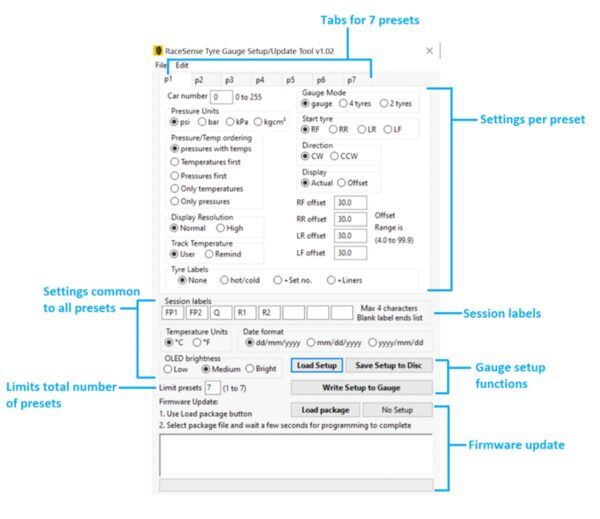
Turn off the tyre gauge and connect it to the PC using a USB cable. The tyre gauge display will show it is connected to the PC.
Press the ‘Load package’ button in the application and browse to the firmware location. Select the rebooter file and press ok. Wait for a few seconds until the message ‘programming complete’ appears in the application window (the button alongside should normally show ‘Include Setup’ ).Do not unplug or power down the tyre gauge during programming.
Unplug USB and make sure the gauge is off i.e. display is not showing anything. Then press and hold the power button until the display shows ‘Rebooter’ and ‘Done 0’. Release the power button.